

Your website should not just exist. It should help people find you, understand what you do, and take the next right step.
For nonprofits and small businesses, that might mean getting more donations, volunteer inquiries, program registrations, appointment requests, newsletter signups, or local customers. But if you do not have the right Google accounts set up, it is hard to know whether your website is actually doing its job.
This guide walks through three foundational Google tools every small organization should understand:
- Google Analytics 4, often called GA4
- Google Search Console
- Google Business Profile
They are not the same thing, and you do not need to become a data analyst to use them well. But setting them up correctly gives your organization better ownership, better visibility, and better decision-making.
Last updated: July 2026
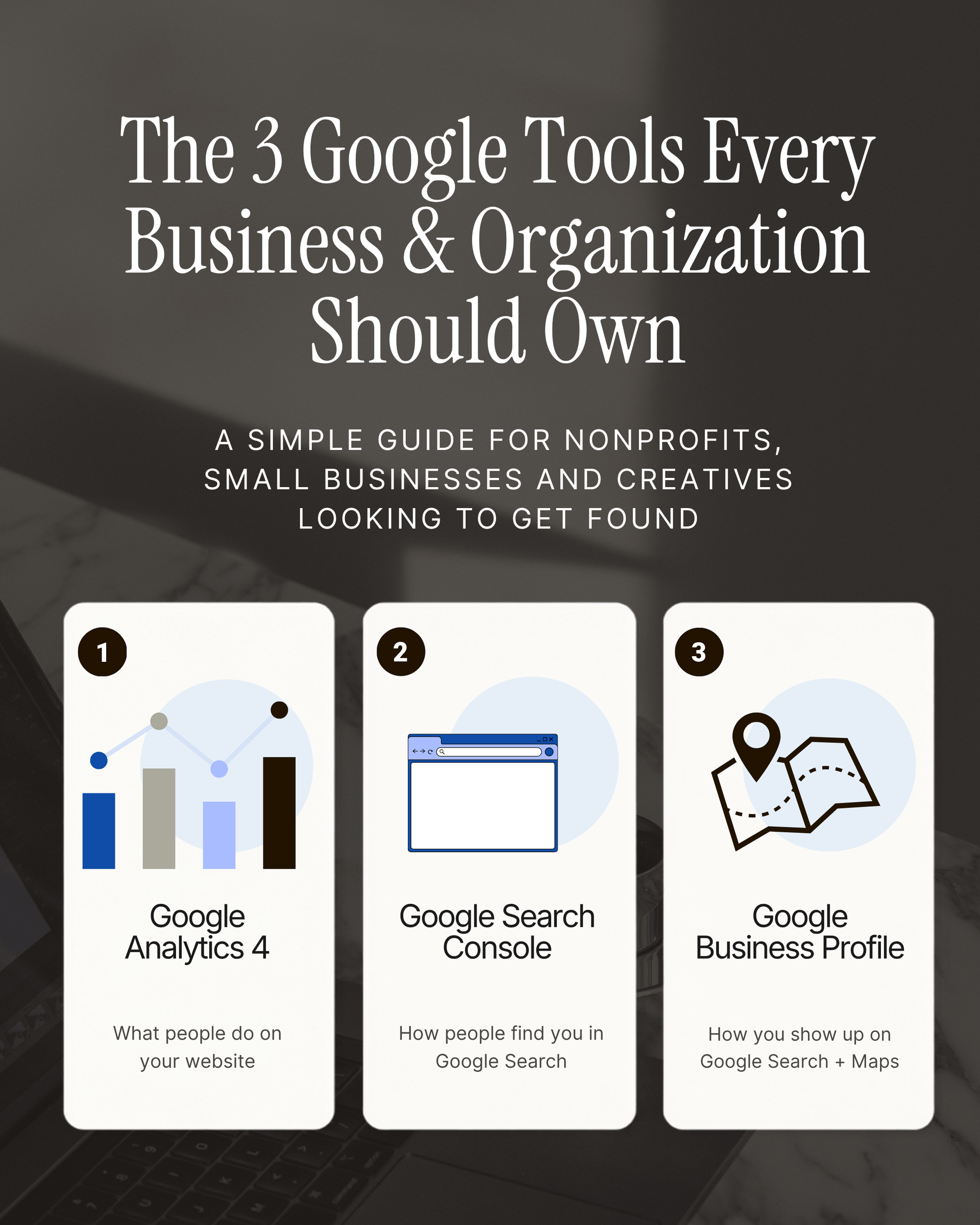
TABLE OF CONTENTS
- Before You Start
- What These Tools Do
- How to Set-up Google Analytics 4
- How to Set-up Google Search Console
- How to Link Google Search Console to Google Analytics
- How to Set-up Google Business Profile
- How to Link Google Business Profile to Google Analytics 4
- How to Analyze Your Data
- Common Setup Issues
- A Practical Checklist
- Need Help?
Before You Start: Use an Account Your Organization Controls
Before you set up any Google tools, pause here.
Your Google Analytics, Search Console, and Business Profile should be owned by your organization, not by an employee’s personal Gmail account, a board member’s personal login, or an outside web designer’s account.
That matters because staff leave. Contractors change. Board members rotate off. If the wrong person owns your account, your organization can lose access to its own website data, search visibility tools, or Google Maps listing.
Ideally, use a Google account tied to your organization, such as:
- hello@yourorganization.org
- admin@yourbusiness.com
- marketing@yourorganization.org
- operations@yourbusiness.com
You should also make sure more than one trusted person has administrative access. At minimum, document:
- Which Google account owns each tool
- Who has admin access
- Who has backup access
- Where login recovery information is stored
- Which outside partners have access and why
Keeping good documentation of your accounts and roles ensures organizational stability and team alignment.
What These Google Tools Help You Do
Google Analytics 4
Google Analytics 4 helps you understand what people do on your website. It can show how visitors arrive, which pages they view, what actions they take, and whether your website is supporting your goals. Google’s setup process involves creating an Analytics account, creating a GA4 property, adding a web data stream, and installing the Google tag on your website.
Use GA4 to answer questions like:
- How many people visited our website?
- Which pages are people spending time on?
- Where is our traffic coming from?
- Are people clicking, signing up, donating, registering, or contacting us?
- Which campaigns or referral sources are actually working?
Google Search Console
Google Search Console helps you understand how your website appears in Google Search. It focuses less on what people do after they land on your site and more on how Google sees your site before people click.
Search Console requires you to verify that you own the website before you can access its data.
Use Search Console to answer questions like:
- Is Google indexing our website?
- What search terms are people using to find us?
- Which pages show up in search results?
- Are there technical issues affecting visibility?
- Has Google discovered our sitemap?
Google Business Profile
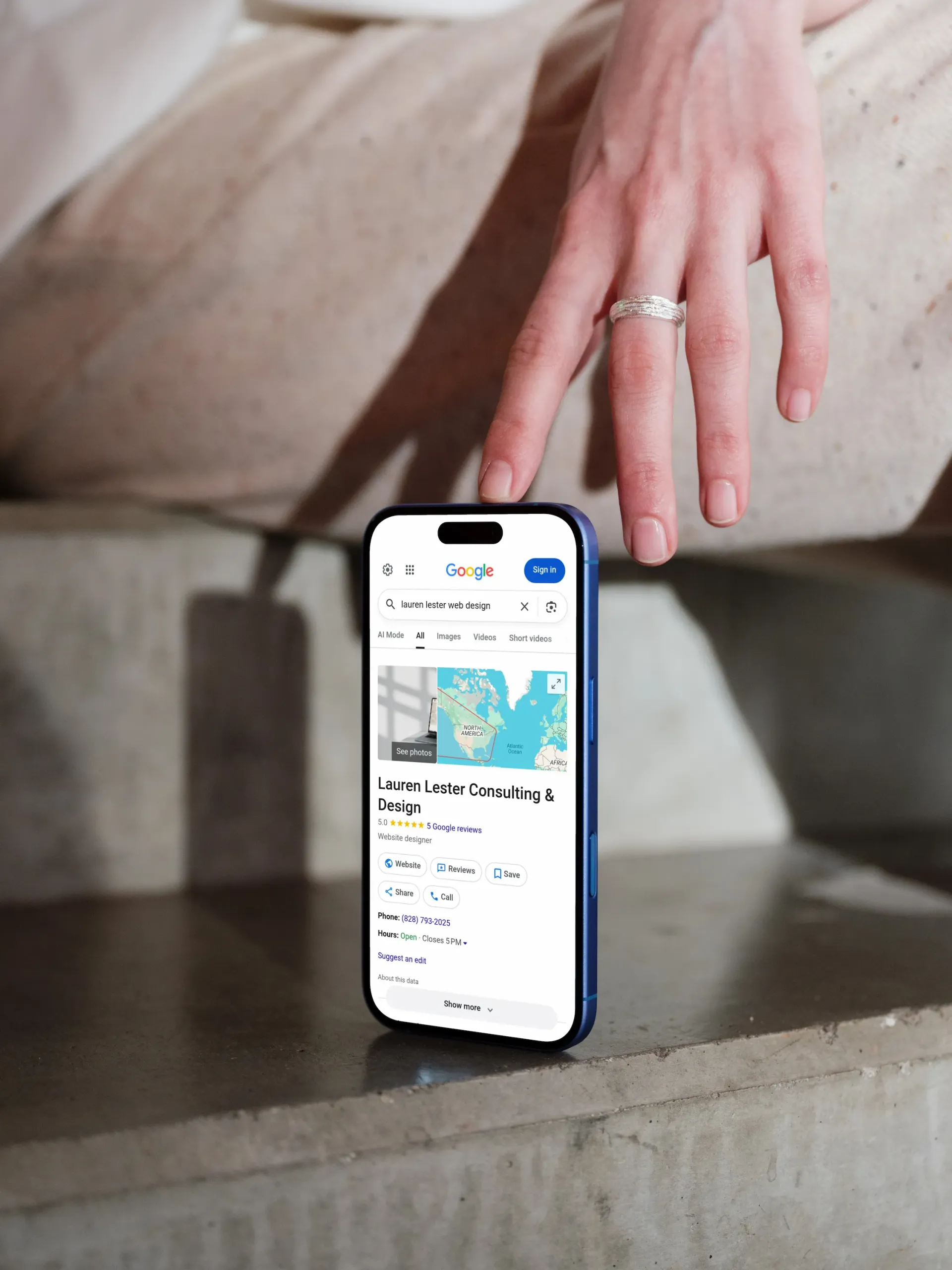
Google Business Profile controls how your organization or business appears on Google Search and Google Maps. This is especially important for local businesses, service-area businesses, nonprofits with a public location, community programs, clinics, studios, shops, and organizations people may search for by name.
Use Google Business Profile to manage:
- Business or organization name
- Address or service area
- Phone number
- Website link
- Hours
- Photos
- Services
- Business description
- Reviews
- Maps visibility
Step 1: Set Up Google Analytics 4
Google Analytics 4 is the main website analytics tool you will use to understand how people interact with your site.
To set it up:
- Go to Google Analytics
- Click Start measuring, or go to Admin → Create → Account
- Create an Analytics account for your organization
- Create a GA4 property for your website
- Add a Web data stream using your website URL
- Copy your Measurement ID
- Install the Google tag on your website
Your GA4 Measurement ID usually starts with G-. Google uses this ID to connect your website to the correct Analytics data stream.
The WordPress Option: Use Site Kit by Google
If your website is built on WordPress, the simplest setup option is often Site Kit by Google.
Site Kit is Google’s official WordPress plugin. It can connect key Google services, including Search Console and Analytics, and show basic reporting inside WordPress without manually editing code.
This is helpful for small teams because you do not have to paste tracking code directly into your theme files or rely on a developer every time you need to confirm whether Analytics is connected.
Site Kit can also create or connect an Analytics account, property, and web data stream during setup.
After Setup: Confirm Analytics Is Working
Once GA4 is connected, open the Realtime report in Google Analytics and visit your website in another browser tab.
Google notes that data collection can take up to about 30 minutes to begin. The Realtime report is the quickest way to confirm that your tracking is working.
Do not panic if historical reports look empty immediately after setup. GA4 needs time to collect data.
Step 2: Set Up Google Search Console
Google Search Console helps you understand whether your site is visible in Google Search and whether Google is having trouble crawling or indexing your pages.
To set it up:
- Open Google Search Console
- Click Add property
- Choose either a Domain property or a URL prefix property
- Follow Google’s verification instructions
- Once verified, submit your sitemap
- Domain Property vs. URL Prefix Property
You will usually see two setup options:
- A
Domain property covers the full domain, including different versions like https, http, www, and non-www. This is often the best long-term option, but it usually requires access to your domain’s DNS settings. Google notes that Domain properties require DNS verification unless the property is on certain Google products.
- A URL prefix property covers only the exact URL prefix you enter. For example, https://example.org and https://www.example.org may be treated differently. Google defines URL-prefix properties as including the protocol and, optionally, a path string.
For most nonprofits and small businesses:
- Choose Domain property if you have access to DNS
- Choose URL prefix property if you need the easier setup path through your website, Google Analytics, or an HTML tag
- Submit Your Sitemap
Your sitemap helps Google discover the pages on your website.
For many WordPress websites, your sitemap may be located at one of these URLs:
- yourdomain.org/sitemap.xml
- yourdomain.org/wp-sitemap.xml
- yourdomain.org/sitemap_index.xml
If your site uses an SEO plugin, the sitemap may come from that plugin. If you are not sure, ask your web partner or check your SEO plugin settings.
Once you find the sitemap URL, submit it inside Search Console under Sitemaps.
Step 3: Link Search Console to GA4
After GA4 and Search Console are both set up, connect them.
This lets Search Console data appear inside Google Analytics, giving you a more complete picture of how people find and use your website.
To link Search Console to GA4:
- Open Google Analytics
- Go to Admin
- Under Product links, choose Search Console links
- Click Link
- Select the verified Search Console property
- Select the correct web data stream
- Review and submit
Google requires the right permissions to create the link: you need to be a verified owner of the Search Console property and have the appropriate Analytics access.
This is a small step, but it is easy to miss. Without this connection, your Analytics and Search Console data stay separated.
Step 4: Set Up Google Business Profile
If your nonprofit or small business serves a local audience, has a physical location, or works in a specific service area, Google Business Profile is essential.
To set it up:
- Go to Google Business Profile
- Add your business or organization, or search for it and claim the existing profile
- Enter your name, category, website, phone number, address or service area, and business hours
- Follow Google’s verification steps
- After verification, add photos, services, a description, hours, and other profile details
Google Business Profile verification methods are determined automatically based on factors like business type, public information, region, and business hours. The available method may include phone, email, postcard, video recording, or another option, and in some cases Google may require more than one method.
What to Add After Verification
Once your profile is verified, do not stop at the basics. A thin profile can make your organization look inactive or incomplete.
Add:
- A clear business or organization description
- Accurate hours
- Website link
- Phone number
- Service area, if relevant
- Services or programs
- Photos
- Accessibility details, if available
- Appointment, donation, menu, booking, or intake links, if relevant
For nonprofits, your description should clearly answer:
- Who do you serve?
- What do you help people do?
- Where do you operate?
- How can someone get involved, donate, visit, contact you, or receive services?
For small businesses, your description should clearly answer:
- What do you offer?
- Who is it for?
- Where do you serve customers?
- What makes your approach different?
- What should someone do next?
Step 5: Optional — Link Google Business Profile to GA4
Google now allows Google Business Profile to be linked to Google Analytics from the GA4 Admin area under Product links → Google Business Profile links. Once linked, GA4 can show Business Profile-related metrics such as website clicks, calls, directions, messages, bookings, menus, and other available interactions.
This is especially useful if local discovery matters to your organization.
For example, a nonprofit might want to know whether people are clicking for directions to a resource center. A small business might want to understand whether Google Maps visibility is leading to website visits or phone calls.
To link Google Business Profile to GA4:
- Open Google Analytics
- Go to Admin
- Under Product links, choose Google Business Profile links
- Click Link
- Select the Business Profile you manage
- Review the data-sharing information
- Confirm the link
Google lists two key permission requirements: you need Editor or Administrator access for the GA4 property and Owner or Manager permission for the Business Profile you want to link.
What Your Organization Should Own Directly
Your organization should directly own:
- Google Analytics 4
- Google Search Console
- Google Business Profile
- Domain and DNS access
- WordPress administrator access
- Website hosting access
- Email domain access
Your web designer, SEO consultant, marketing agency, or IT support person can be added as a user. But they should not be the only owner.
The rule is simple: outside partners can help manage your digital tools, but your organization should retain control of them.
A Simple Access Structure
For a small organization, a practical access structure might look like this:
Primary owner: Organization-controlled Google account
Backup owner: Executive director, founder, operations lead, or trusted internal administrator
Outside support: Web designer/developer, SEO consultant, marketing partner, or IT provider
Documentation: Stored in a secure password manager or internal operations document
Avoid relying on one person’s personal Gmail account as the only login. That creates unnecessary risk.
How to Analyze Your Data
Once everything is set up, you do not need to live inside these tools every day. A monthly check-in is enough for many small teams.
In GA4, check:
- Total users
- Traffic sources
- Top pages
- Key events or conversions
- Donation, contact, booking, registration, or signup activity
In Search Console, check:
- Search queries
- Top pages in search
- Indexing issues
- Sitemap status
- Sudden traffic drops
- Pages with high impressions but low clicks
In Google Business Profile, check:
- Website clicks
- Calls
- Direction requests
- Reviews
- Profile completeness
- Hours and holiday hours
- Outdated photos or services
What to Track First
You do not need to track everything. Start with the actions that actually matter.
For nonprofits, that might include:
- Donation clicks
- Volunteer inquiry forms
- Newsletter signups
- Program registration clicks
- Resource downloads
- Contact form submissions
- Event registrations
For small businesses, that might include:
- Contact form submissions
- Appointment bookings
- Phone clicks
- Email clicks
- Quote requests
- Service page visits
- Product or menu views
- Local direction requests
The goal is not to collect data for the sake of collecting data. The goal is to understand whether your website is helping people take meaningful action
Common Set-Up Issues
“I do not know who owns our Google Analytics account.”
This is common, especially for older organizations. Check with past web designers, marketing contractors, former staff, board members, or whoever originally launched the website. If you still cannot find access, you may need to create a new GA4 property and document ownership clearly going forward.
“Search Console says we need DNS access.”
That usually means you selected a Domain property. DNS verification is often the best option, but you will need access to your domain registrar or DNS provider. If that is not available, use a URL prefix property instead.
“Analytics is installed, but I do not see data yet.”
Wait at least 30 minutes, then check the Realtime report. Also confirm that the correct Measurement ID was installed on the correct website.
“Our Google Business Profile is already claimed by someone else.”
You may need to request ownership. This can happen if a former employee, volunteer, agency, or previous business owner created the profile.
“We have multiple locations.”
Create or manage each location carefully. If you link Google Business Profile to GA4, Google notes that a single GA4 property can be linked to multiple Business Profiles, but reporting may aggregate some data.
A Practical Setup Checklist
Use this as a simple implementation order:
- Create or confirm an organization-owned Google account
- Make sure at least two trusted people have access
- Set up Google Analytics 4
- Install the GA4 tag on your website
- Confirm traffic in the Realtime report
- Set up Google Search Console
- Verify ownership of the website
- Submit your sitemap
- Link Search Console to GA4
- Add or claim your Google Business Profile
- Verify your Business Profile
- Complete your profile details
- Optional: Link Google Business Profile to GA4
- Document all ownership, access, and recovery information
The Impact of Setting Up These Profiles Correctly
For nonprofits, small businesses, and creatives, these tools are a part of your organization’s digital foundation.
Google Analytics helps you understand what people do on your website. Search Console helps you understand how people find you through Google Search. Google Business Profile helps you show up locally and manage how your organization appears on Search and Maps.
Set them up once, set them up correctly, and make sure your organization owns the accounts.
That way, the next time you need to make a website decision, apply for funding, evaluate a campaign, improve search visibility, or understand how people are finding you, you will not be guessing.
You will have the data, access, and ownership you need to move forward with more confidence.
Need Help Setting This Up?
If your business or organization needs help setting up Google Analytics 4, Google Search Console, Google Business Profile, verification, reporting, or ongoing analytics support, I would be happy to help your team get these foundational pieces in place. Send a quick note to get started.

Don't know where to start? Get your free mini audit.
Actionable tips, resources, and feedback to get you moving.